
Manage your programs
A program is not set in stone. You can edit it, deactivate it, create others. Only one thing calls for caution: changing the threshold once customers have already started collecting.
A program page
From the Programs tab, tap the one you want. You will find its type, threshold, reward, optional price, and above all its QR code, the one to display at the counter.
Edit an existing program
The name and the reward text can be changed with no consequence: they only affect what is displayed on your customers' cards.
The threshold deserves more thought. Lowering it favours customers in progress, who suddenly find themselves closer to their reward. Raising it moves them further from the goal they were promised, and people notice.
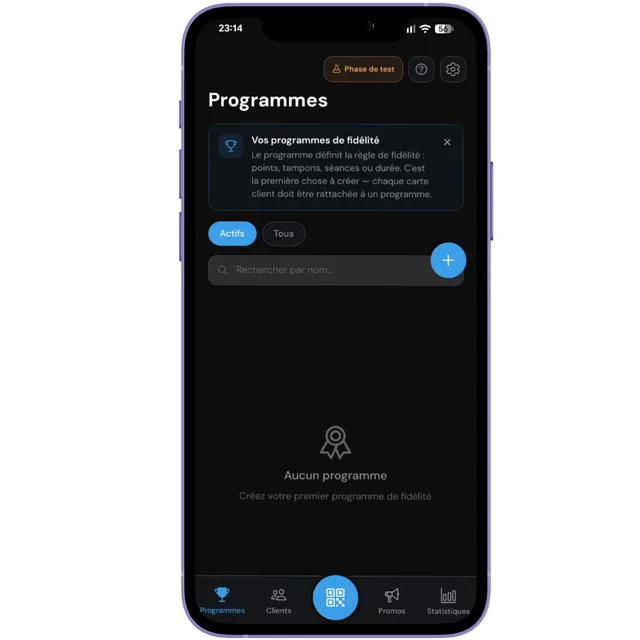
Deactivate rather than delete
Deactivating a program stops new sign-ups while keeping existing cards and their history. That is the right move for a seasonal offer you will bring back later.
Deletion, on the other hand, is permanent. Use it only for a program created by mistake, before a single customer has signed up.
What can go wrong
A customer is trying to sign up with an old QR code. Remove the matching display and replace it with the one from the active program.
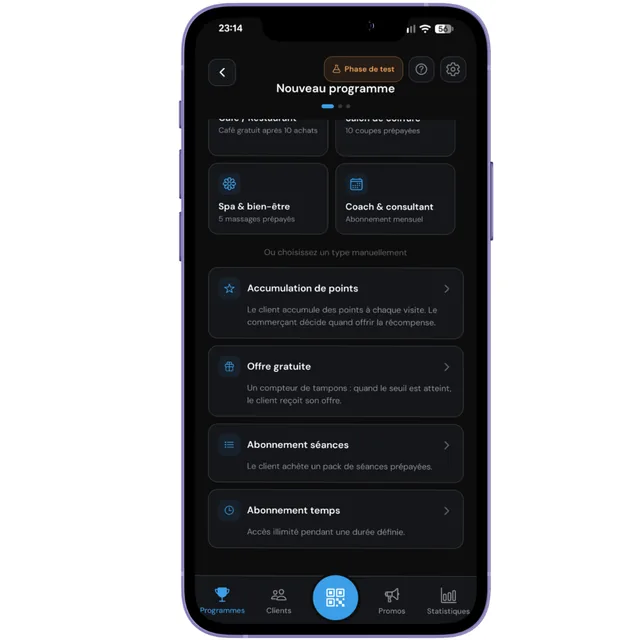
You are trying to create a program of a different type from the first one. On the free plan, the type is locked. The Solo plan removes that limit. See chapter 14.