
Scan a card
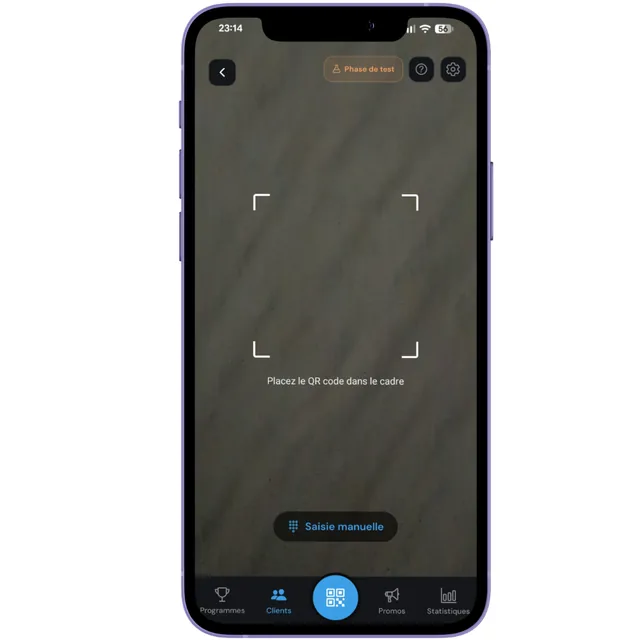
This is the central move in Aster, the one you will make dozens of times a day. It takes three seconds: blue button, viewfinder, confirmation.
Open the scanner
The blue button in the middle of the bottom bar opens the camera directly. The customer shows you their card, from their browser or from their wallet, and you frame the code.
Reading is automatic. There is no shutter button to press.
Confirm the visit
Aster shows the card it recognised, with the customer's first name and their current counter. You confirm, and the stamp is added.
This confirmation screen exists for one precise reason: it prevents adding a visit to the wrong person during a rush. Get into the habit of checking the name shown before confirming.
Manual entry, as a fallback
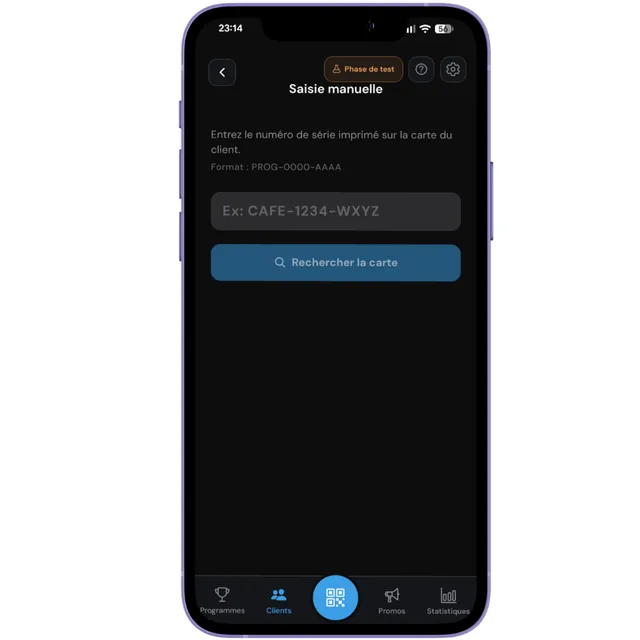
Cracked screen, low brightness, dead battery: sometimes a code refuses to read. Rather than losing the customer, type their card number by hand.
The result is identical to a scan. This is not a degraded option, just another route to the same action.
Create a card at the counter
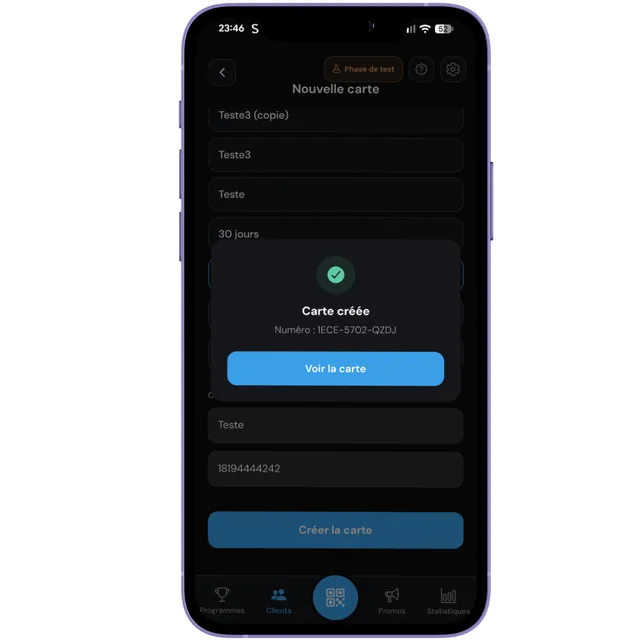
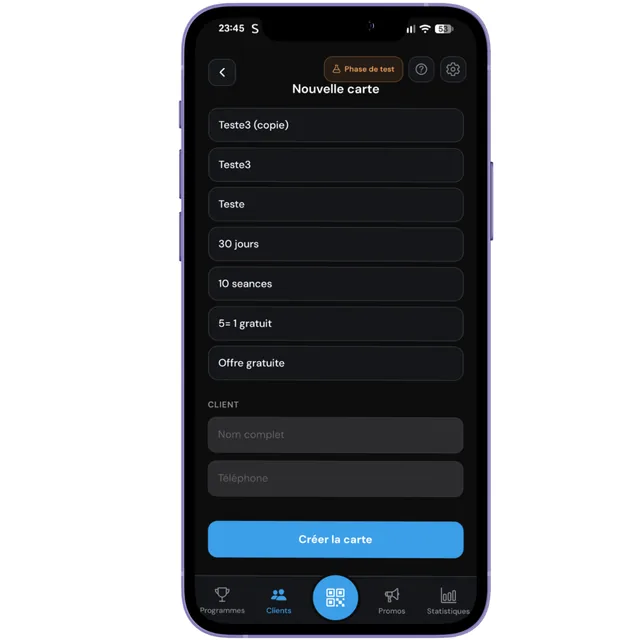
You can also create a customer's card straight from your app, without them scanning anything. Useful for someone in a hurry, or for a customer struggling with their camera.
You enter their first name and number on their behalf. Remember to ask for their agreement out loud: consent is still required, even when you are the one typing.
What can go wrong
The exact messages from the app, and what they mean.
The customer has completed their card. Aster refuses to add an eleventh stamp until the reward has been given, so the counter stays truthful. Grant the reward, the counter resets, and scanning works again. See chapter 9.
Their session pass is exhausted. You need to sell them a new package and top up their card before a visit can be counted down.
Their time pass has run out. Same thing: it must be renewed for the card to become usable again.
The scanned card does not belong to your business, or it has been deleted, often by the customer from their own page. Recreate it if needed.
On a points program, you are trying to deduct more points than the customer holds. Adjust the cost of the reward or wait until they collect more.